
Recon 🕵️
Network Enumeration
TCP Scan
ip=10.129.191.249nmap -sCV -p- -vv -A -T5 -oA scan/normal $ipBased on the TCP scan results, only port 3389 is open, which is typically associated with RDP:
| Port | Software | Version | Status |
|---|---|---|---|
| 3389/tcp | ms-wbt-server | ttl 127 Microsoft Terminal Services | open |
Active Directory Enumeration
From the scan, we can deduce that this is a standalone Windows machine rather than part of an Active Directory domain, which limits our attack surface. Nonetheless, let’s work with what we have and attempt to connect to the target using RDP. To make things easier, I’ll add /dynamic-resolution to automatically adjust the display to my window size, and +clipboard to enable a shared clipboard with the target. Since we don’t have credentials, I’ll use /sec:nla:off to bypass Network Level Authentication:
xfreerdp3 /v:$ip /dynamic-resolution +clipboard /sec:nla:offAfter logging in, we’re presented with a screen labeled ‘Conference Display’ that instructs us to log in as KioskUser0 without a password. There’s also a button displaying text in Korean. The username immediately caught my attention, so I looked it up and discovered that Kiosk Mode is a restrictive feature in Windows that locks the system down to a limited set of applications:
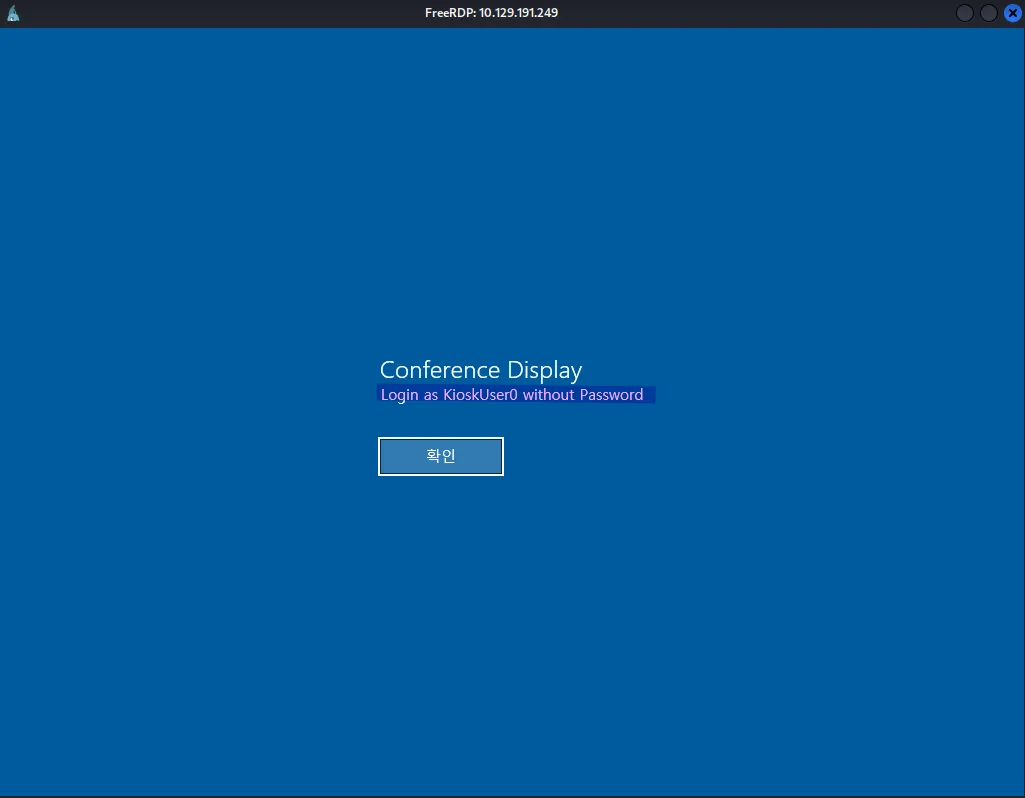
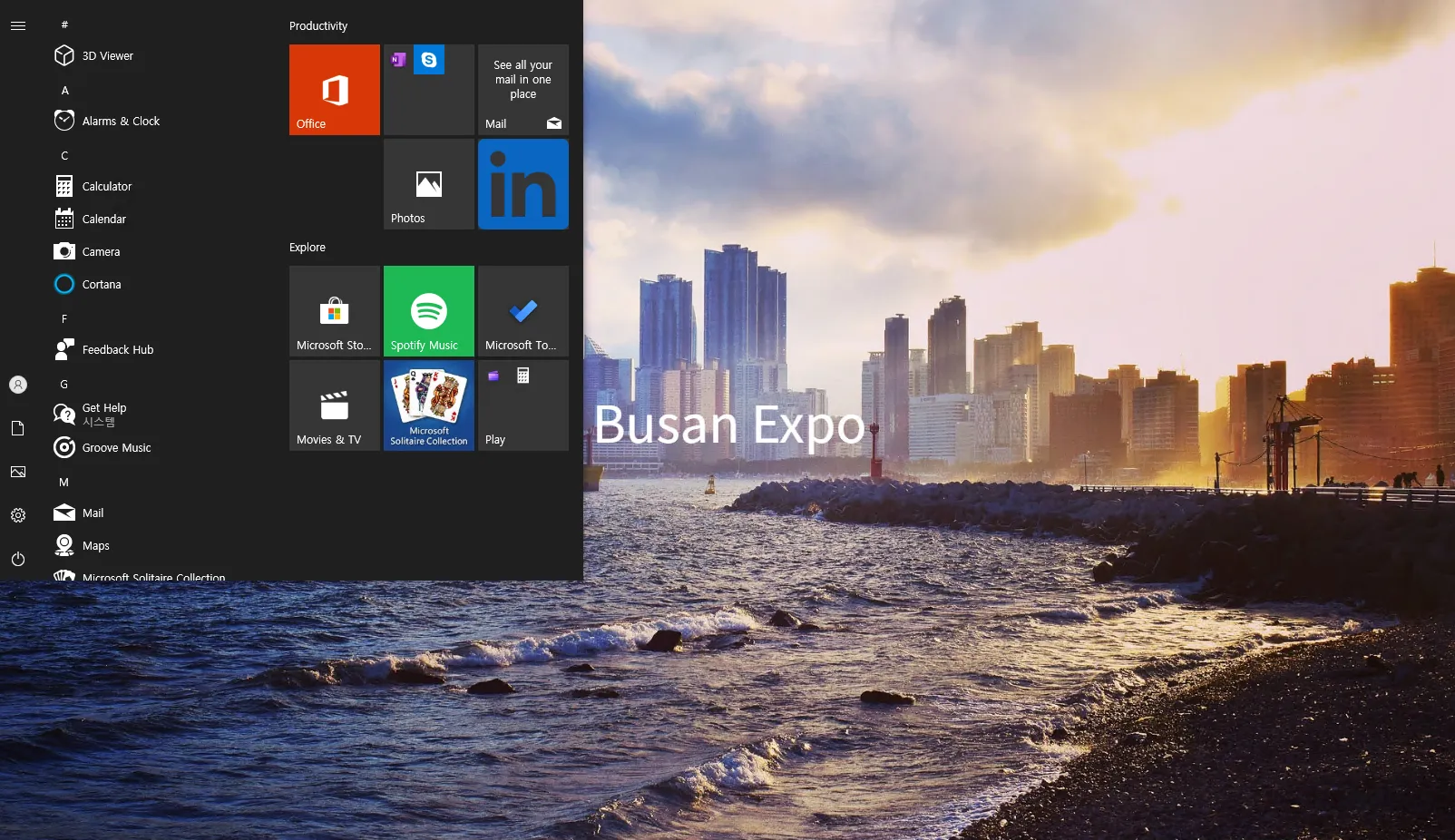
After clicking on the mysterious button (which likely says something like ‘Connect’), we’re redirected to a Windows login screen with the username already pre-filled. We log in using an empty password and are greeted with a wallpaper showing a picture of downtown Busan, along with the text Busan Expo:

Exploiting 🦈
User Flag:
If we press the Windows key on our keyboard, the Start menu appears on the side, which confirms that we’re on a Windows machine likely part of the Busan Expo setup. Given the presence of KioskUser0 and the limited functionality, it’s reasonable to assume that the machine is probably being used as a display screen or for some other restricted purpose:
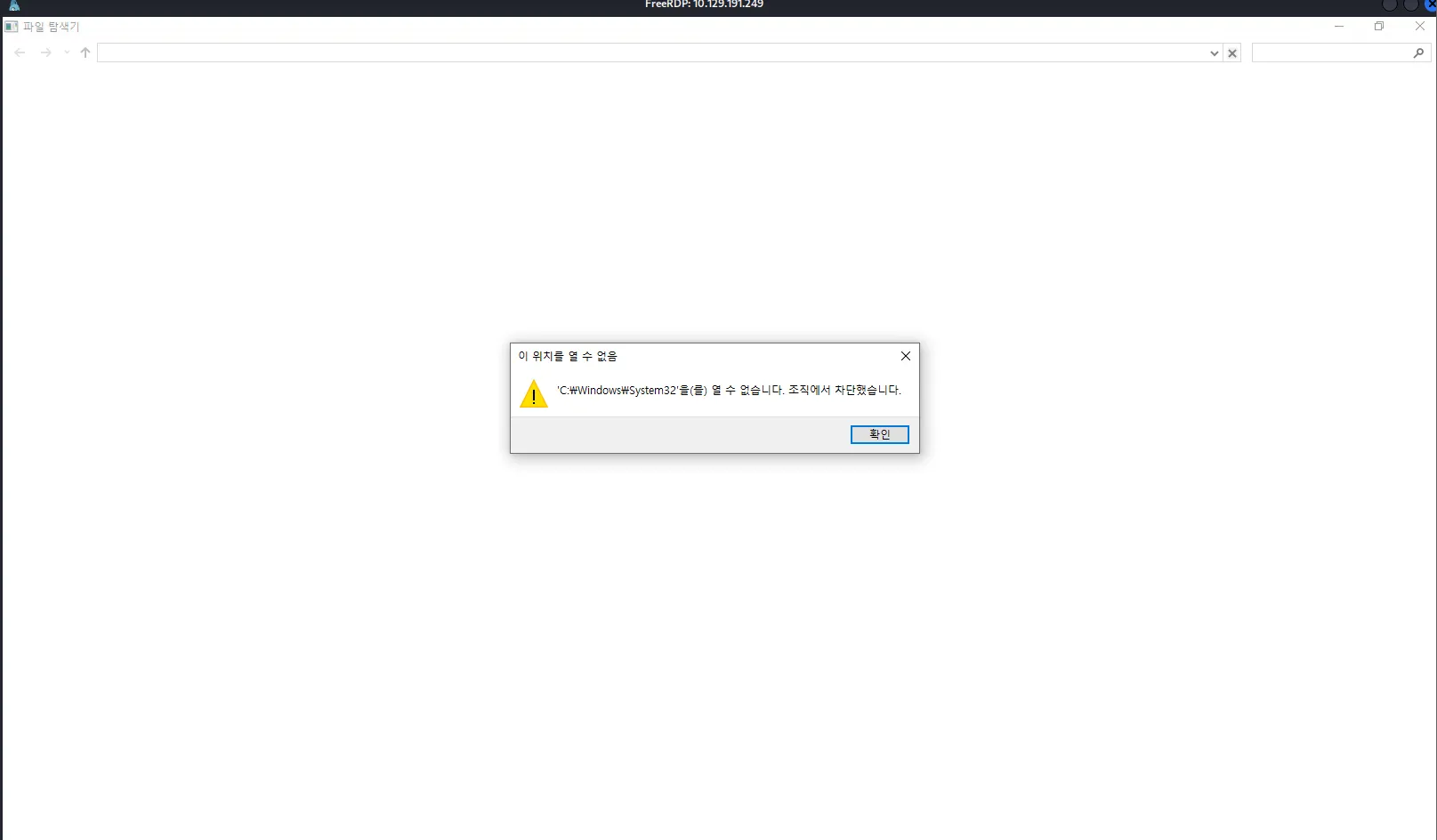
After landing on a Windows machine, the usual next steps are to either open File Explorer for manual enumeration or launch CMD/PowerShell to upload tools and automate the process. However, we’re unable to open any of these:
While going through the apps in the Start menu, the only one I was able to open was Microsoft Edge, which displays a greeting message in Korean:
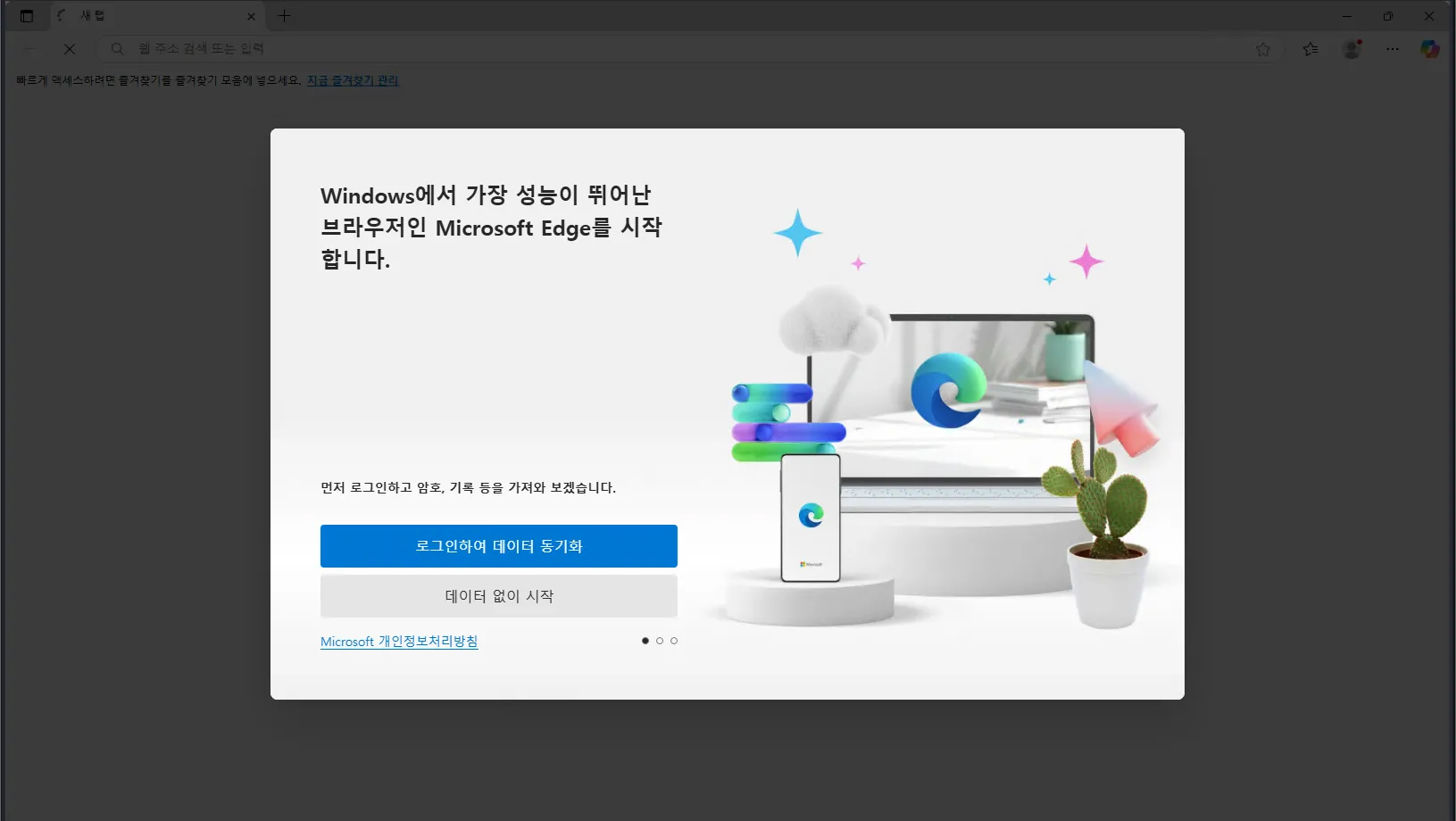
Browsers typically have access to the file system by default, which is used to store downloaded files and open certain file types like PDFs. So, I tried my luck and found that we can indeed access the file system:
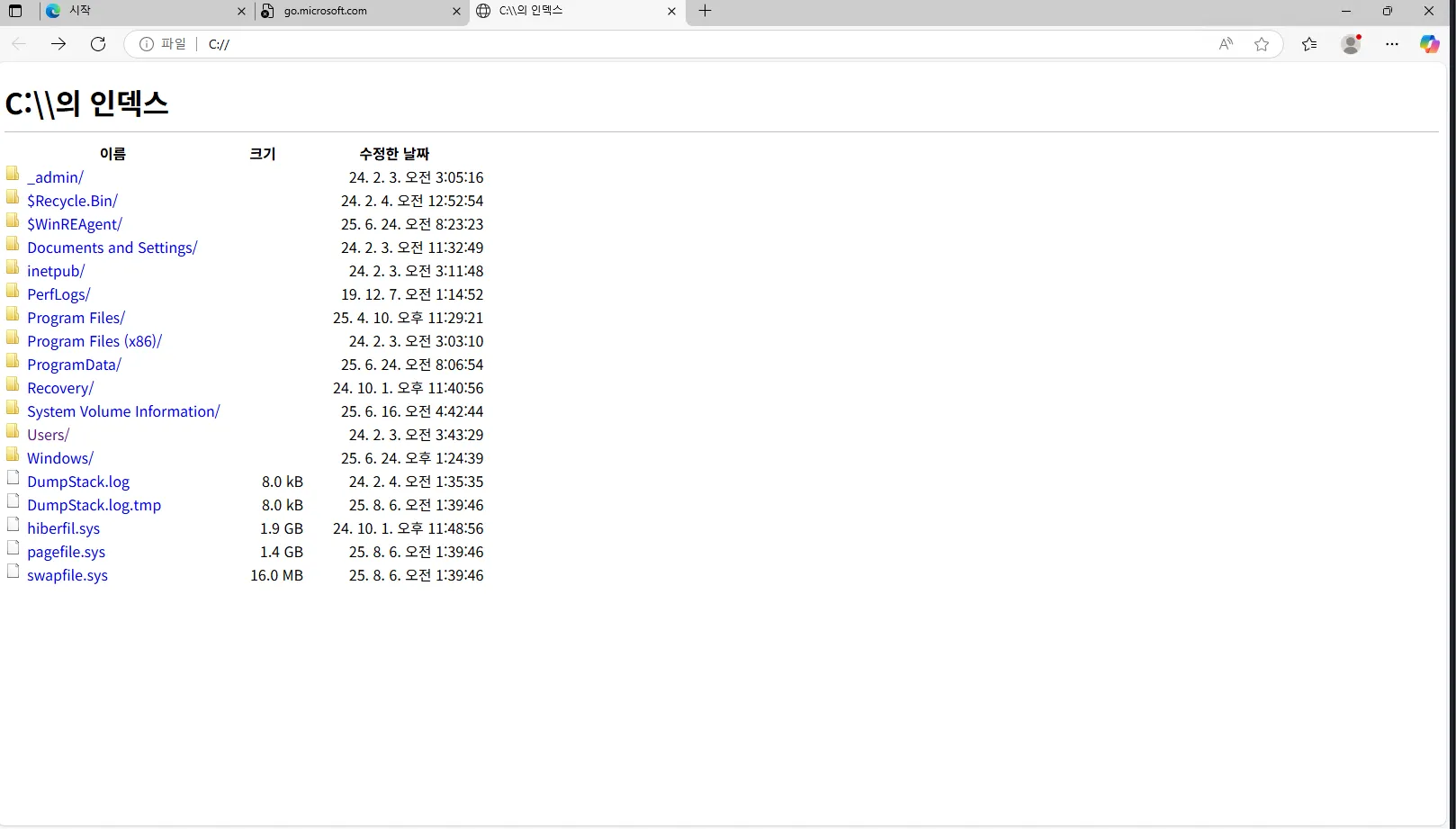
Now if we go to our user’s Desktop we can see the flag there:

Privilege Escalation
First, let’s change the browser’s language from Korean to English. Don’t get me wrong, I love K-dramas and all, but these characters are just 😭:
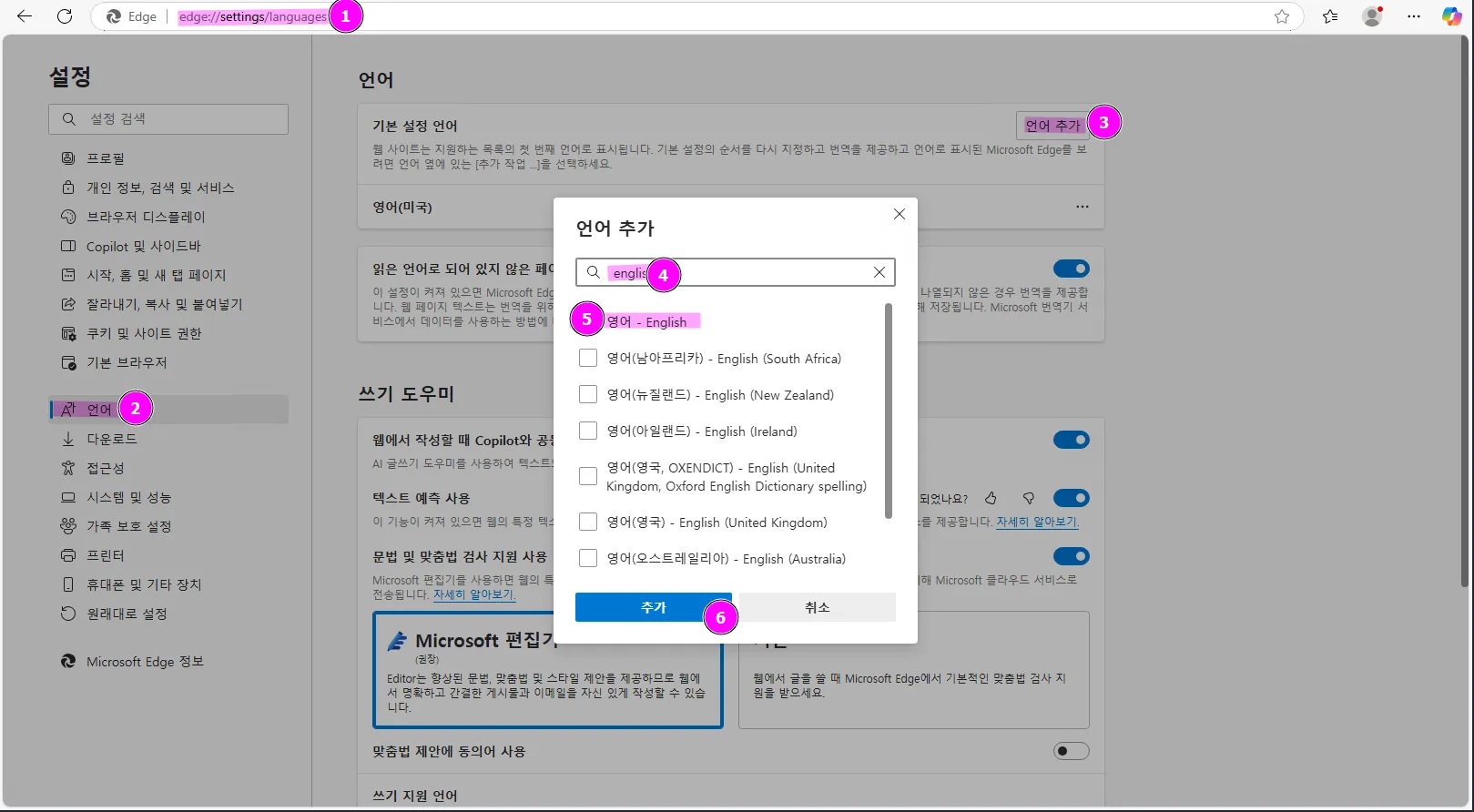 Back in the
 C:/ directory, there’s a suspicious _admin folder containing a configuration file. From the comment, we can see that it is for Remote Desktop Plus:

The password appears to be stored in base64 format but cannot be decoded, suggesting it is encoded using another method. The next logical step is to locate the program and try running it. I found the executable, but we can’t open it:
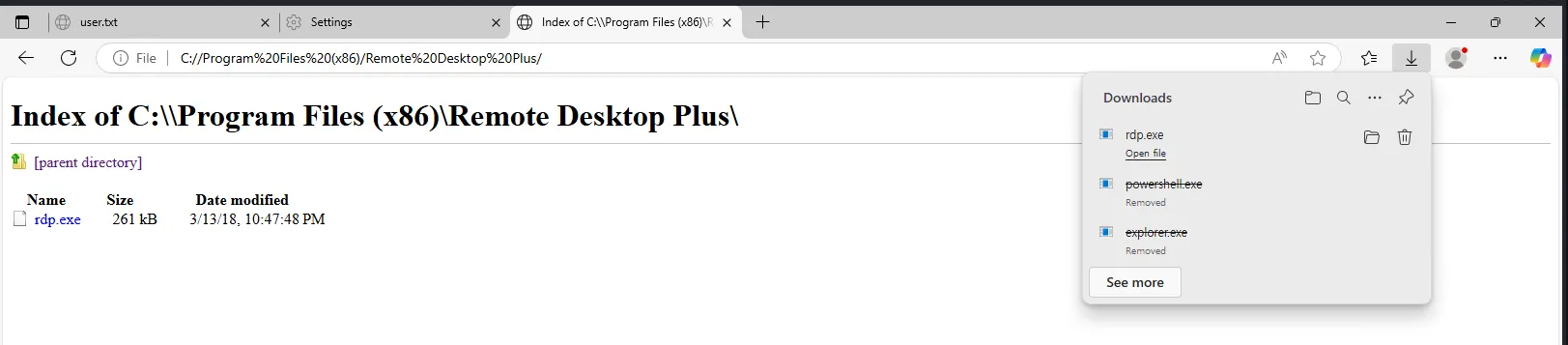
In Explorer, we can see that it cannot be opened either:
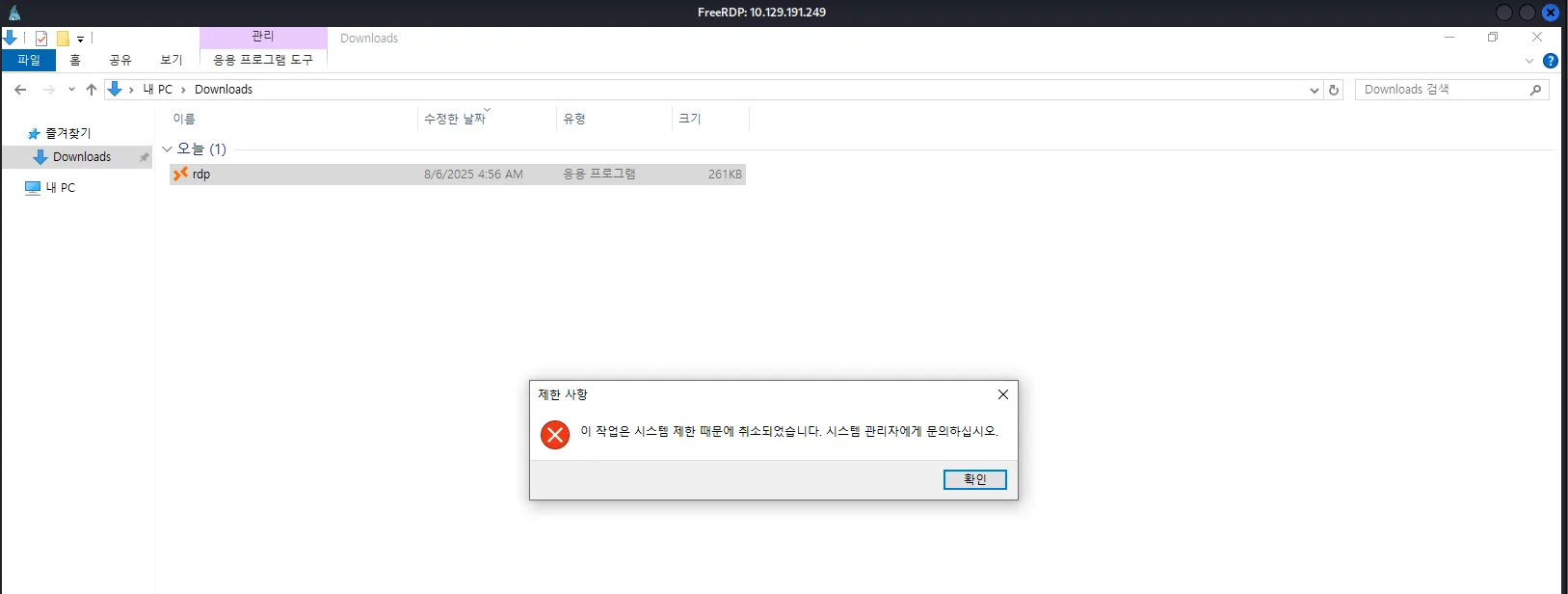

So far, we don’t know how the exclusion rule works. Is it simply a whitelist of allowed programs? How does it determine whether we can access a specific program like Edge? Since this is an easy box, it might be something as simple as validating the executable’s name without checking its signature. To test this, let’s download the rdp.exe program and rename it to msedge.exe:
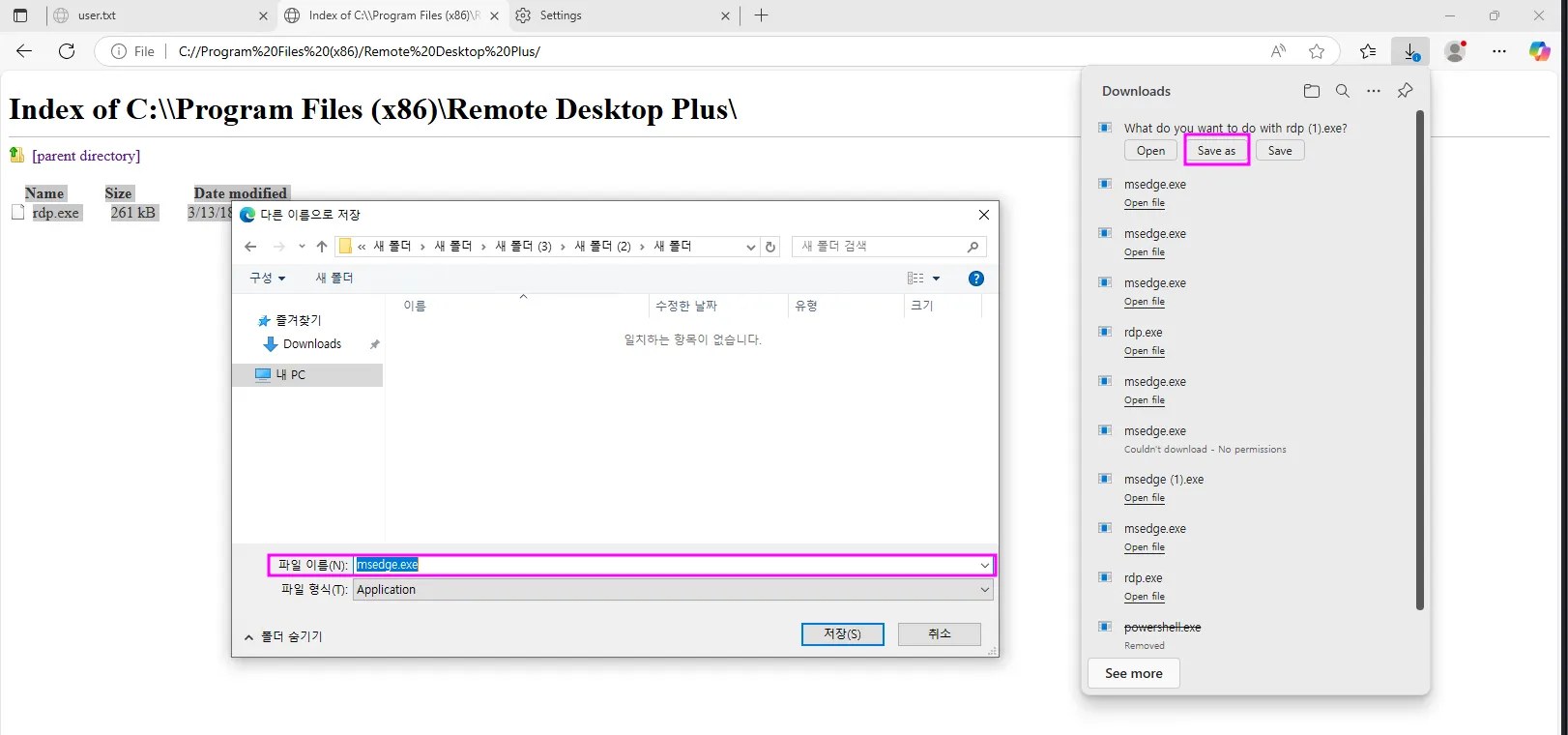
As you can see the trick works:
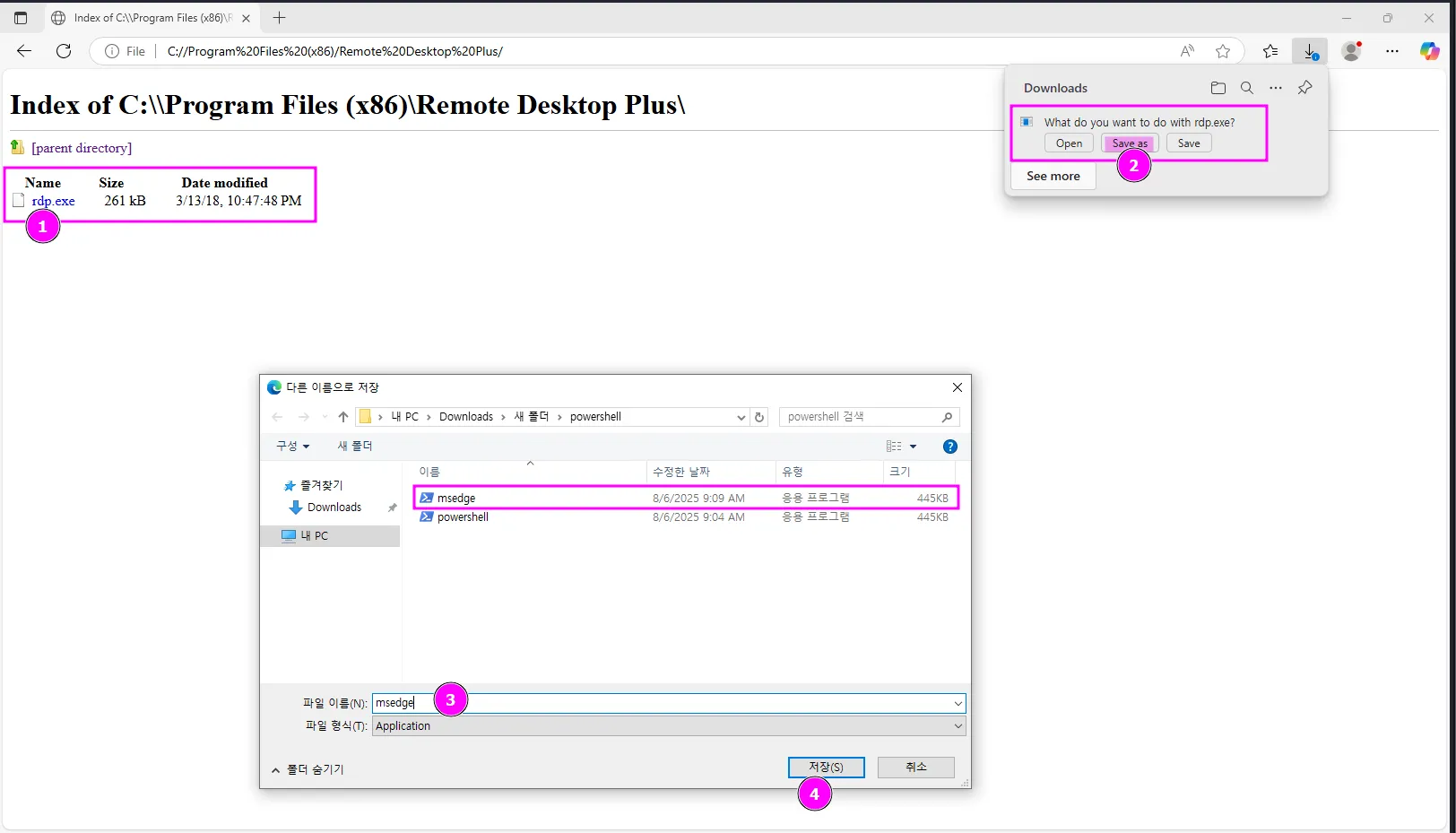

To import the configuration file, I first had to download it to a directory we have access to. Then load it in the program:
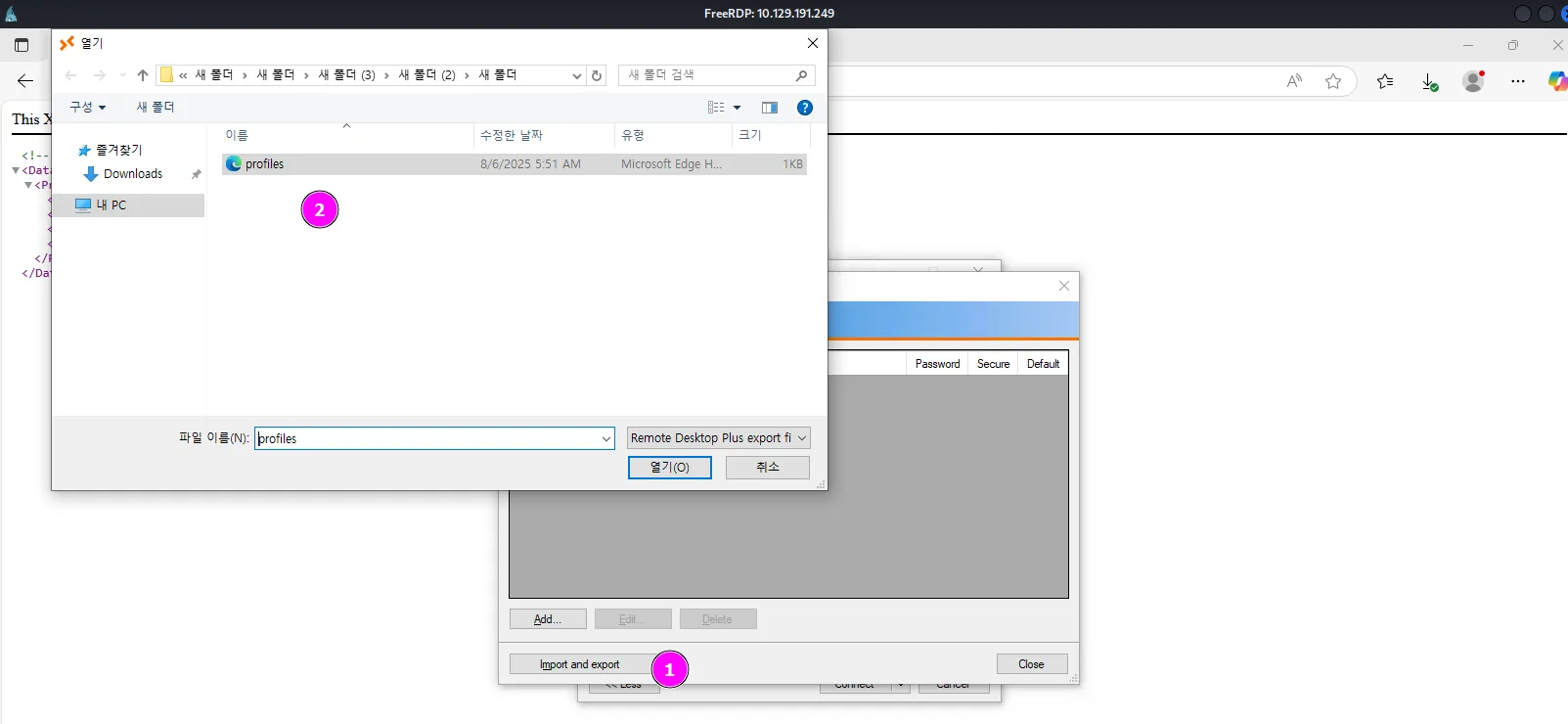
Even though the file is loaded, we still can’t read or copy the password nor connect to the user’s RDP:

One trick that has worked for me in the past is using BulletPassView, a password recovery tool that can reveal passwords hidden behind bullet points. Let’s download it, rename it then drag and drop it from our attack host to the target machine (if that doesn’t work, try copying and pasting it instead):
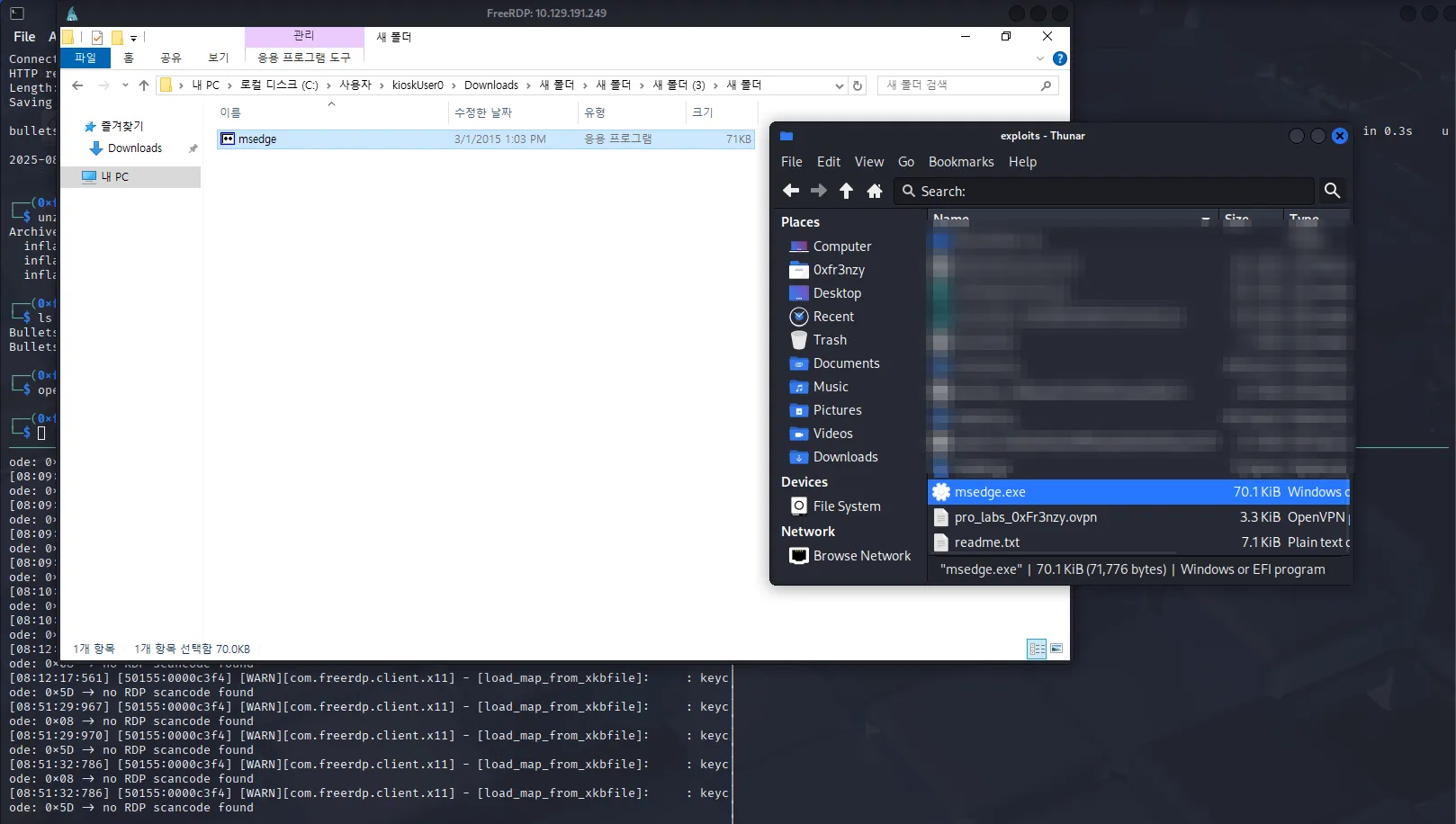
Now we run it and can see the cleartext password displayed (If it doesn’t work for you, try closing Remote Desktop Plus, reopening it, navigating to the “Edit Password” section, and then hitting Refresh in BulletPassView):

admin:Twisting3021Using those credentials, I tried connecting via RDP from my attack host and also attempted to log out and log back in directly on the machine, but neither approach worked. So instead, let’s try running commands as admin rather than attempting to get a full session. First we’ll authenticate then elevate our shell:
runas /user:admin powershellstart-process powershell.exe -verb runas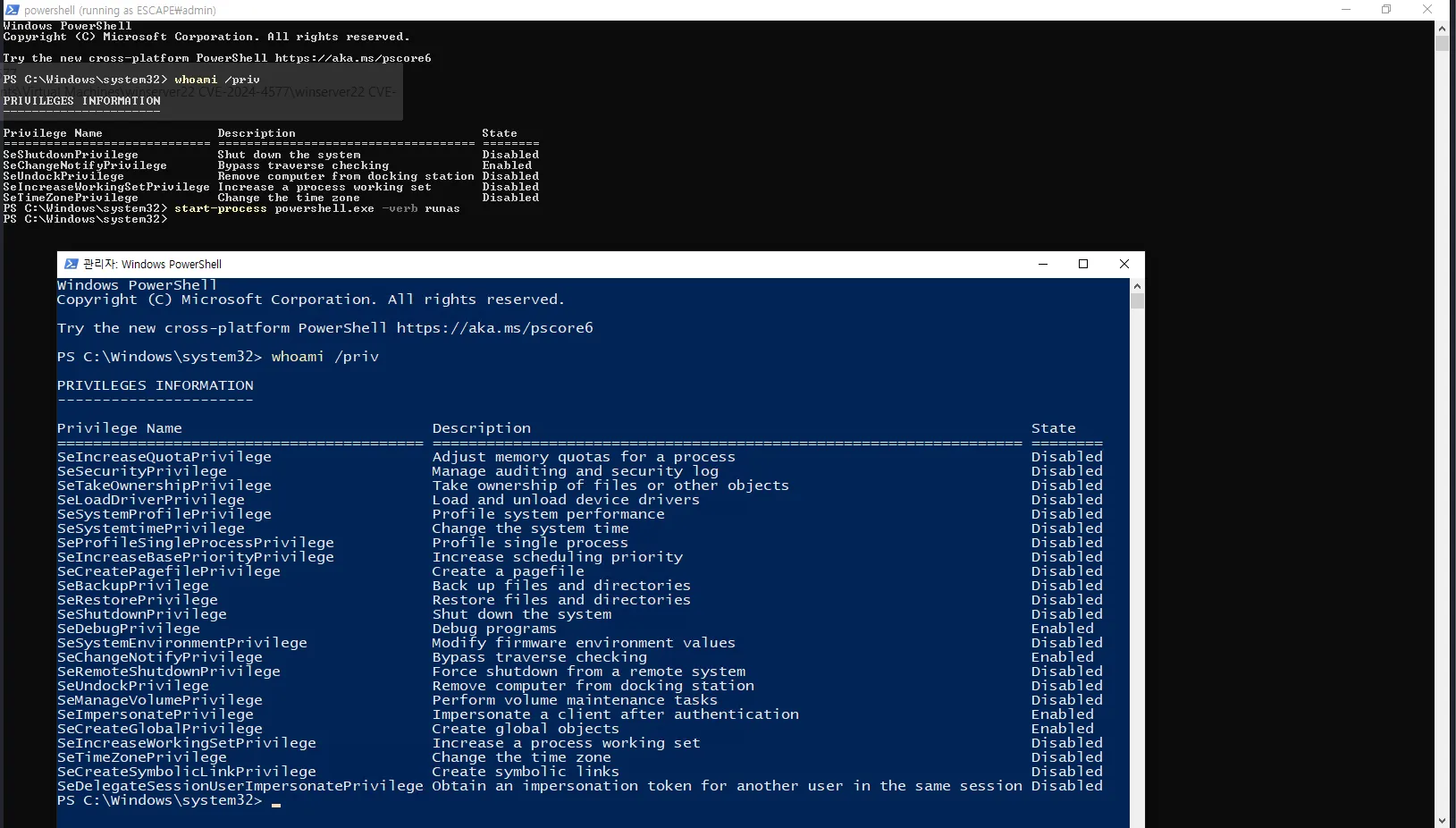

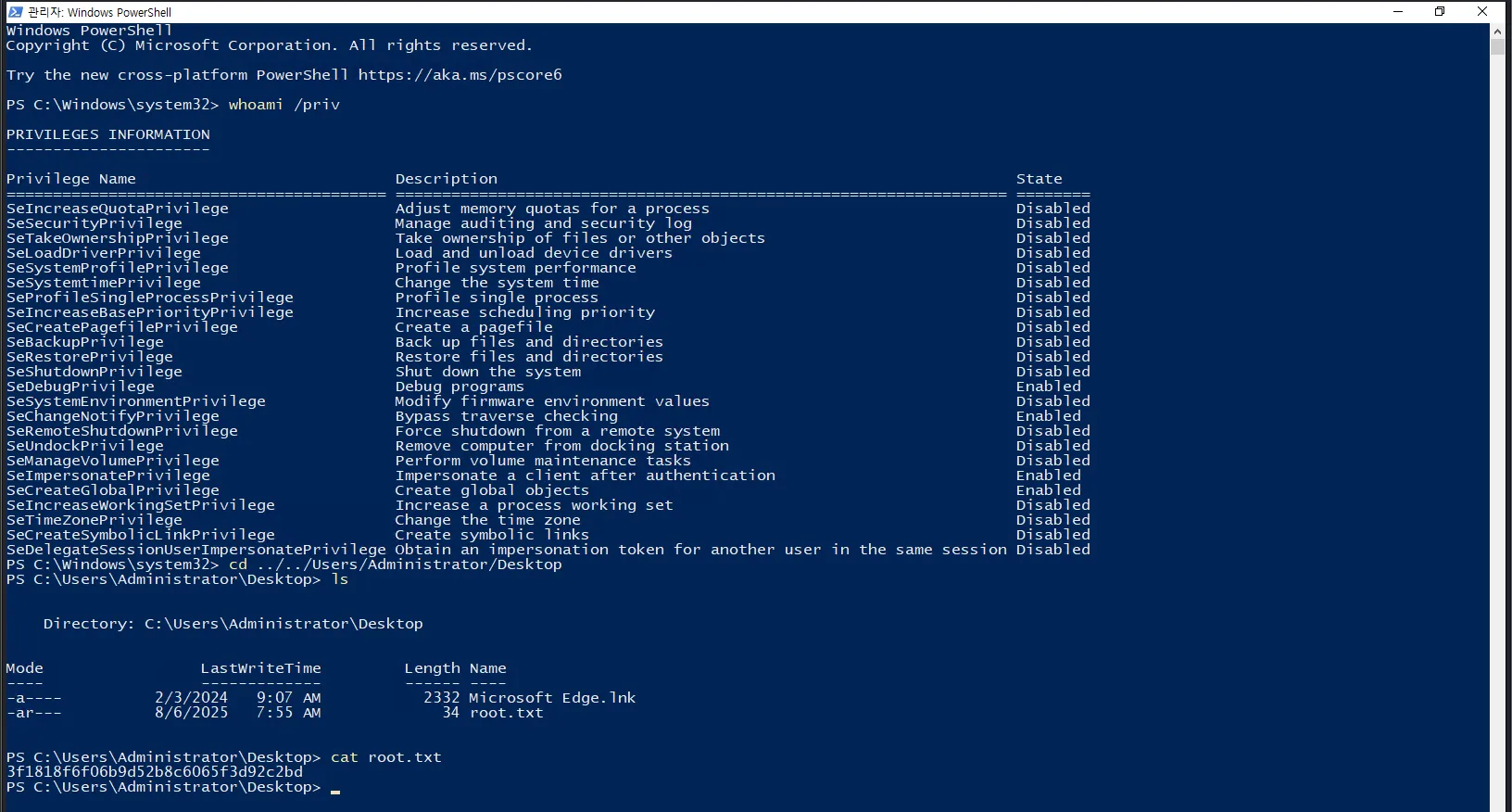
Finally, We collect the flag: